You can securely collect documents directly from your customers, removing the need for your staff to handle sensitive data. The secure document upload feature is accessed by sending your customer a link via a text message or email. Once your customer uploads their documents, they are displayed on the lead and you can trigger automated actions to run, ensuring you never miss a document and can respond to your customers. The document upload page is mobile and tablet friendly allowing your customers to upload their documents at a time and place most convenient to them.
Prerequisites
A lead in the customer's name is required before you can request they submit any documents via the document upload link.
Sending a secure document upload link to your customer to upload a document
Send your customers a secure document upload link by adding a template variable to either a text message or email template. Your template can be sent manually, via a lead action or workflow, or in bulk. When the text message or email is sent, a unique session is created for the secure document upload link which connects it to a specific lead.
The secure document upload link is valid for 30 days from the time the email is sent, after this it expires and can no longer be used.
To include a secure document upload link in a text message or email template:
- Click Settings > Templates and either open an existing template or create a new template by clicking Add New Template and selecting the type of template and the required lead group.
- The variable/merge tag you will be wanting to use is {LEAD_DOCUMENT_UPLOAD}
- At the time of sending the template, the template variable is replaced with the secure document upload link relating to the specific lead.
- Your customer will be able to click on the link to open it wherever they are
Text message template
Select Short Links on your text message template to automatically shorten the link to a maximum of 13 characters in the format flg.to/xxxxxx at the point of sending.
Email Template
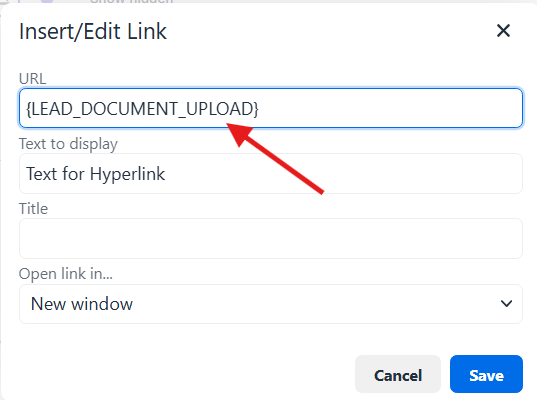
Highlight the text you wish to make the hyperlink/hide the link behind
Click the link button on the formatting hotbar

You then need to enter{LEAD_DOCUMENT_UPLOAD} in the URL field
Using the secure document upload link
The secure document upload link supports your customers uploading one or many documents in a single session.
Each individual document can have a maximum file size of 64MB. Document types uploaded via the secure document upload link are limited to docx, pdf, jpg, png, and gif for security reasons.
On mobile devices, customers are able to use their camera to take a picture of a requested document and upload this immediately.
What your customers will see:
Your customers will get a slightly different view depending on whether they are using the secure document upload feature on a pc or a mobile as shown below.
PC
Mobile
Uploaded documents
Each document uploaded via the secure document upload link will be displayed on a lead as a separate item of activity.
You are able to view, edit and delete documents in the same way as documents uploaded by a user. For more information on these features see our upload, view, edit and delete documents guide.
Automation around documents being uploaded
It is possible to trigger a lead action to occur automatically based on a document being uploaded to a lead. For example, you may want to send an text message to the customer thanking them for uploading their documents or to task the assigned user to check the uploaded documents.
To set up automation on a document being added to a lead, you'll need to create a lead action and select either Document Uploaded - Customer or Document Uploaded - Internal as the event.
If a customer uploads multiple documents at one time via the document upload link, the event will only trigger once for that upload session.